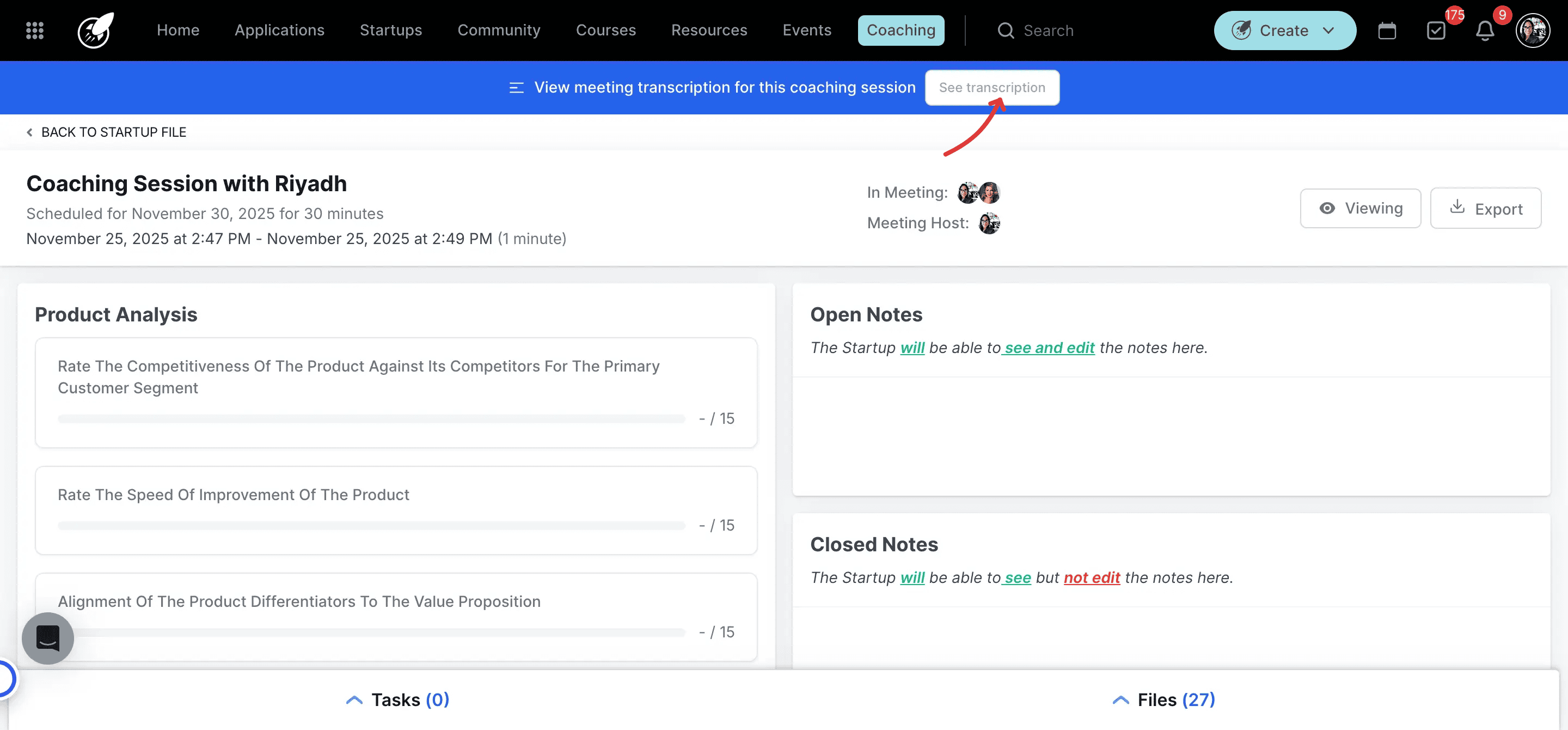
Introduction to the Zoom Transcripts
The Zoom Transcript functionality allows you to capture every detail of your coaching sessions automatically. When a meeting is recorded in Zoom, a full transcript is generated and seamlessly added to the corresponding Coaching Session in AcceleratorApp.
This automation eliminates the friction of manual note-taking, making it easy to review and revisit conversations at any time, track key decisions, share insights with co-coaches, and maintain an accurate historic log for administrative compliance and reporting.
Where to Find Zoom Transcripts
To configure this functionality, look under your personal account settings for integrations and coaching settings. Once configured, transcripts are accessible directly inside any finished coaching session record via the startup portfolio workspace.
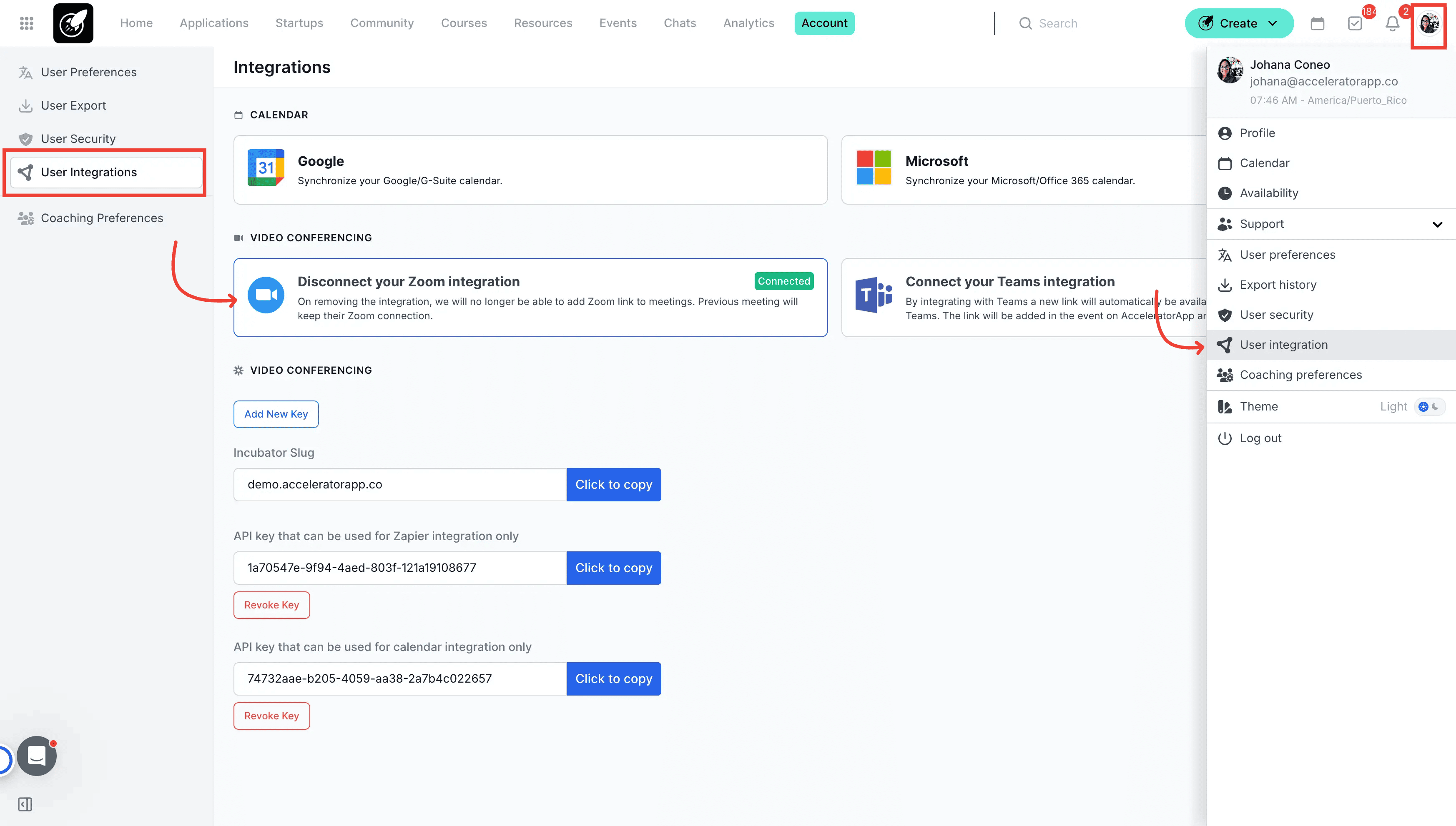
Zoom Integration
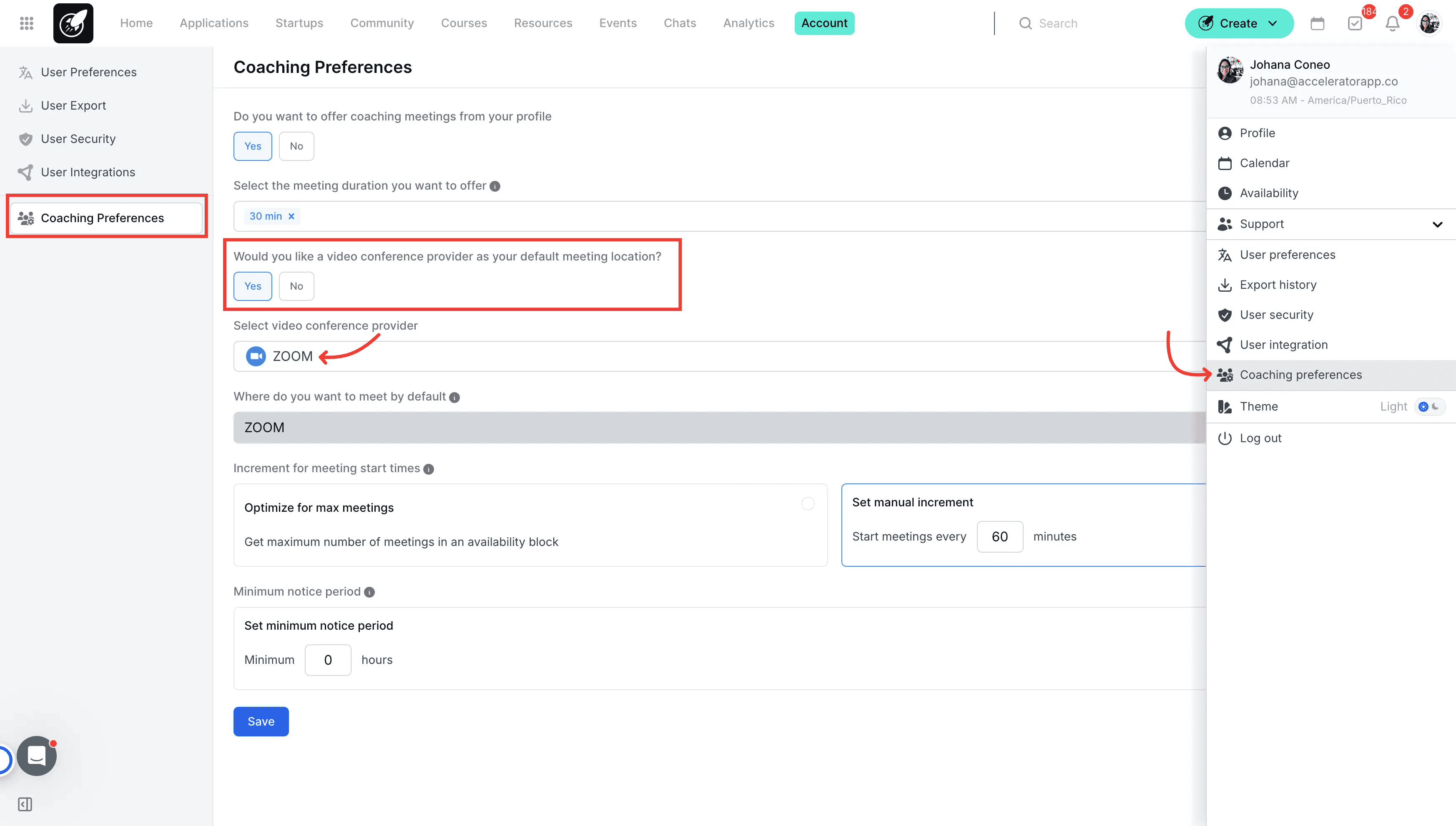
Default Meeting Location
Step-by-Step
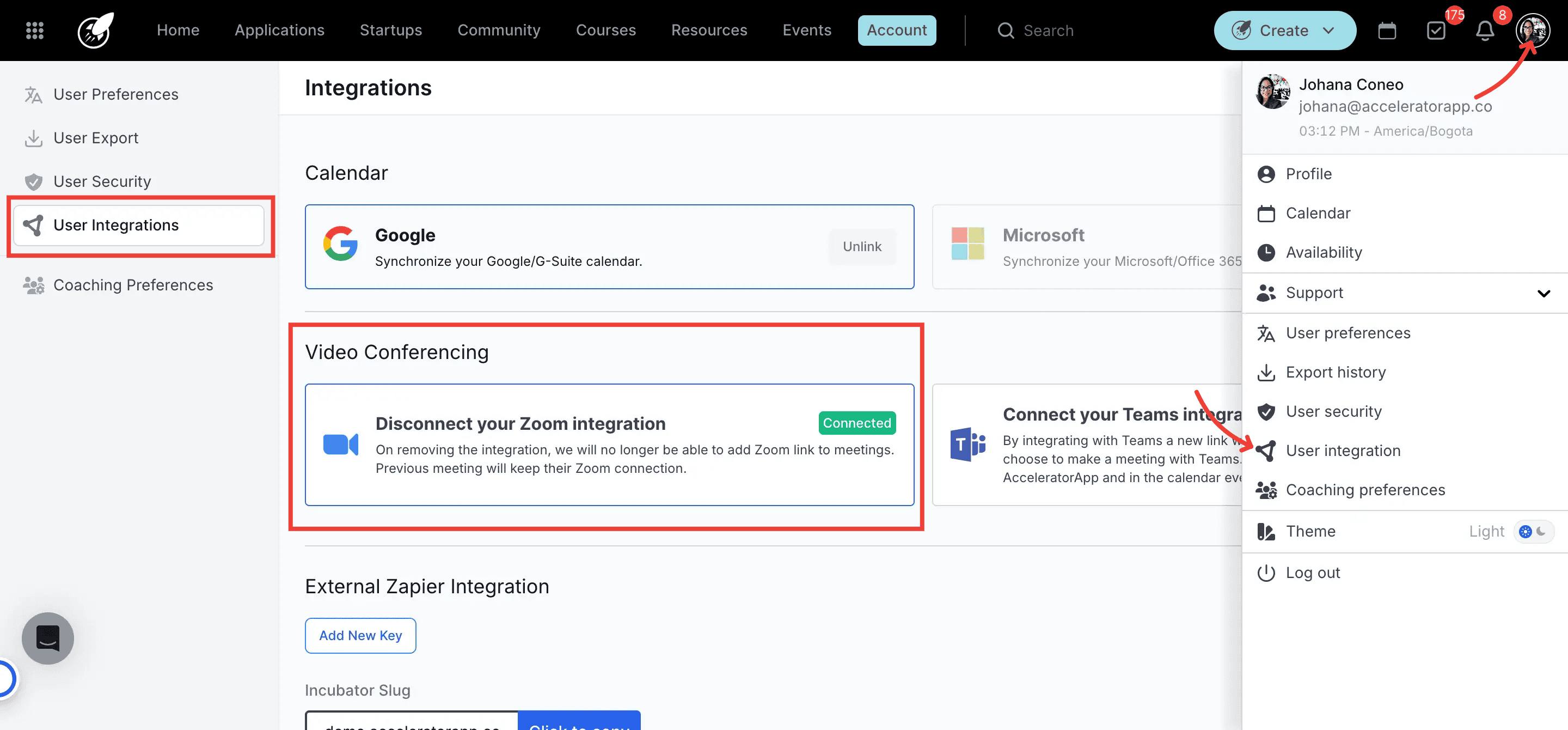
1. Navigate to Account Integrations
Click on your avatar profile, go to Account, and select Integrations from the settings menu.
2. Connect Your Zoom Account
Locate the Zoom card, click Set up, and follow the on-screen prompts to authorize the authentication permission. Locate the Zoom card, click Set up, and follow the on-screen prompts to authorize the authentication permission.
Expected Result: Zoom appears with a green Connected badge.
3. Access Coaching Preferences
Navigate to Account, select Settings, and click on the Coaching section to configure your meeting configurations.
4. Set Zoom as the Default Provider
Toggle the option Use a video conference provider as your default meeting location? to Yes, select Zoom from the dropdown option list, and click Confirm.
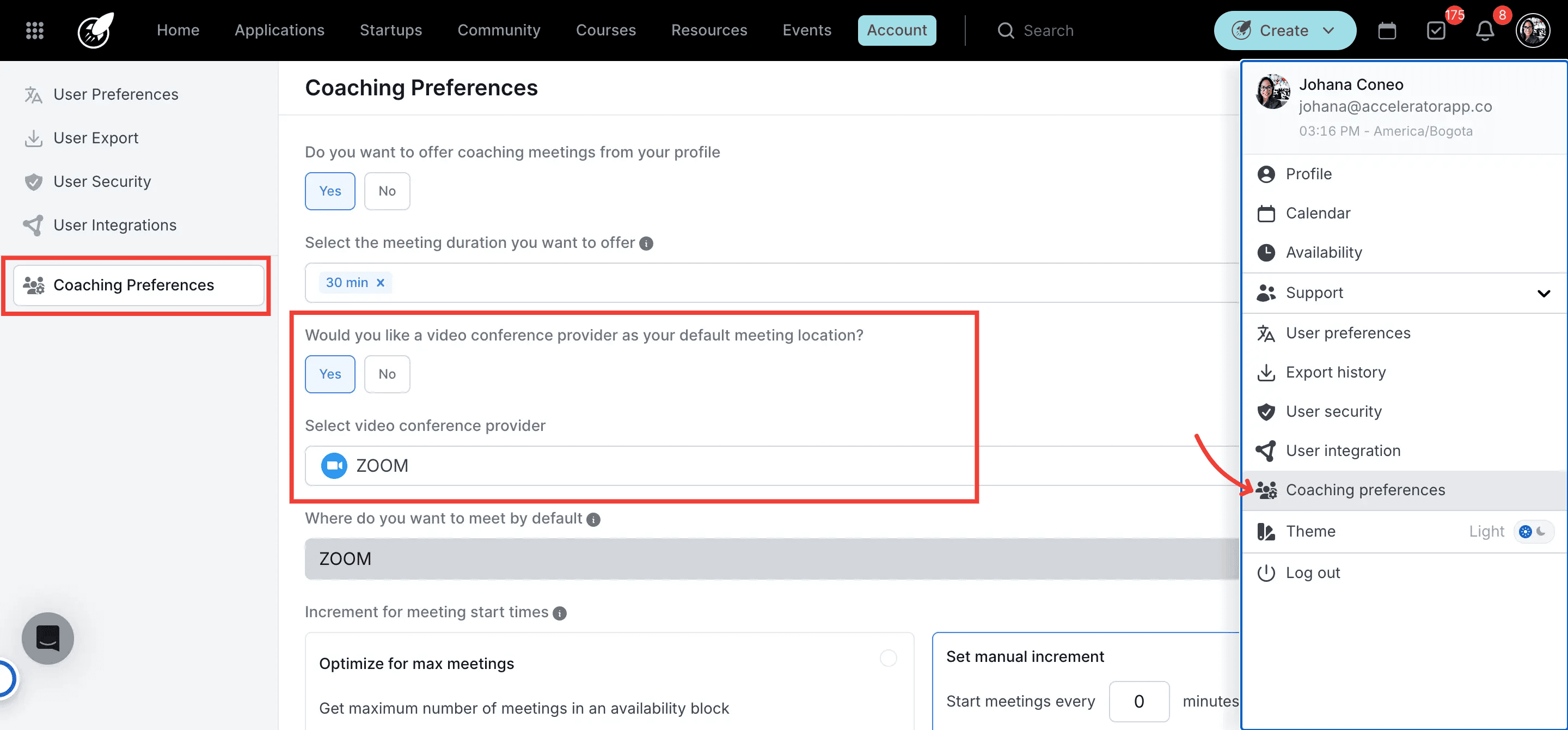
5. Launch a Session Scheduled in AcceleratorApp
If your meeting was scheduled inside AcceleratorApp, join the call by clicking the Join Zoom Meeting link.
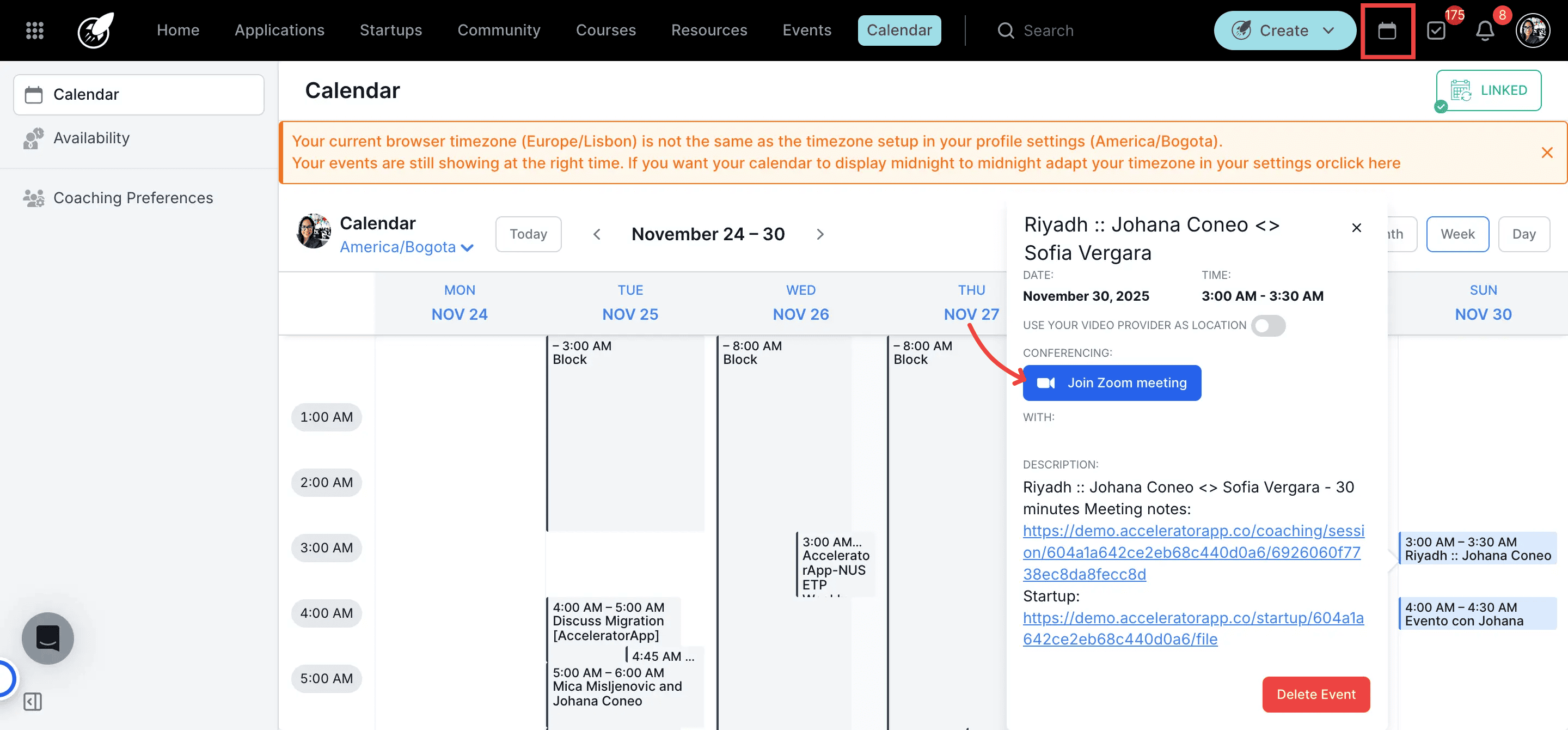
6. Launch an Unscheduled Session Outside AcceleratorApp
If the meeting was not scheduled in AcceleratorApp, start an active coaching session manually and click the blue Start Zoom meeting button.
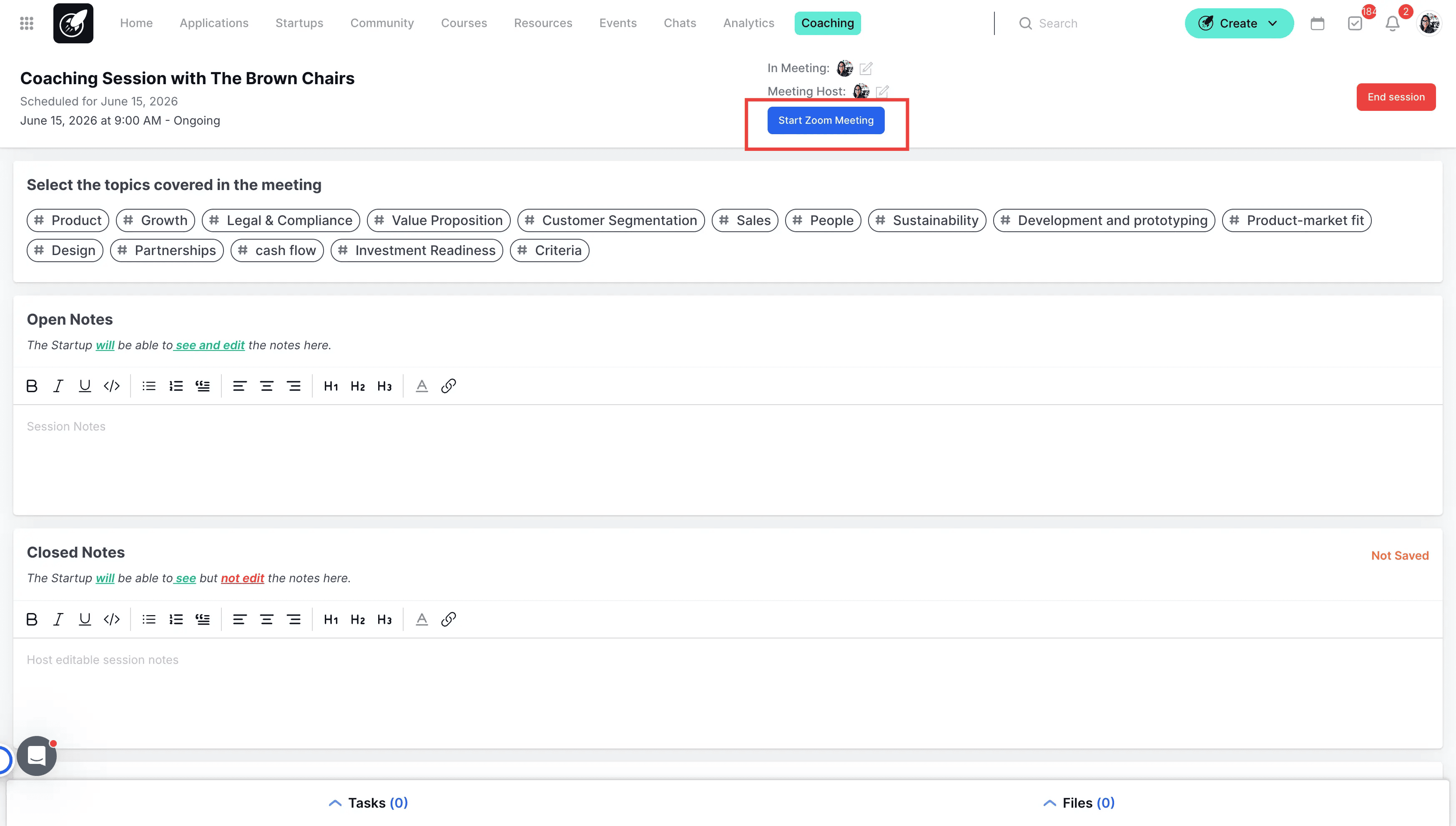
7. Record the Call to the Cloud
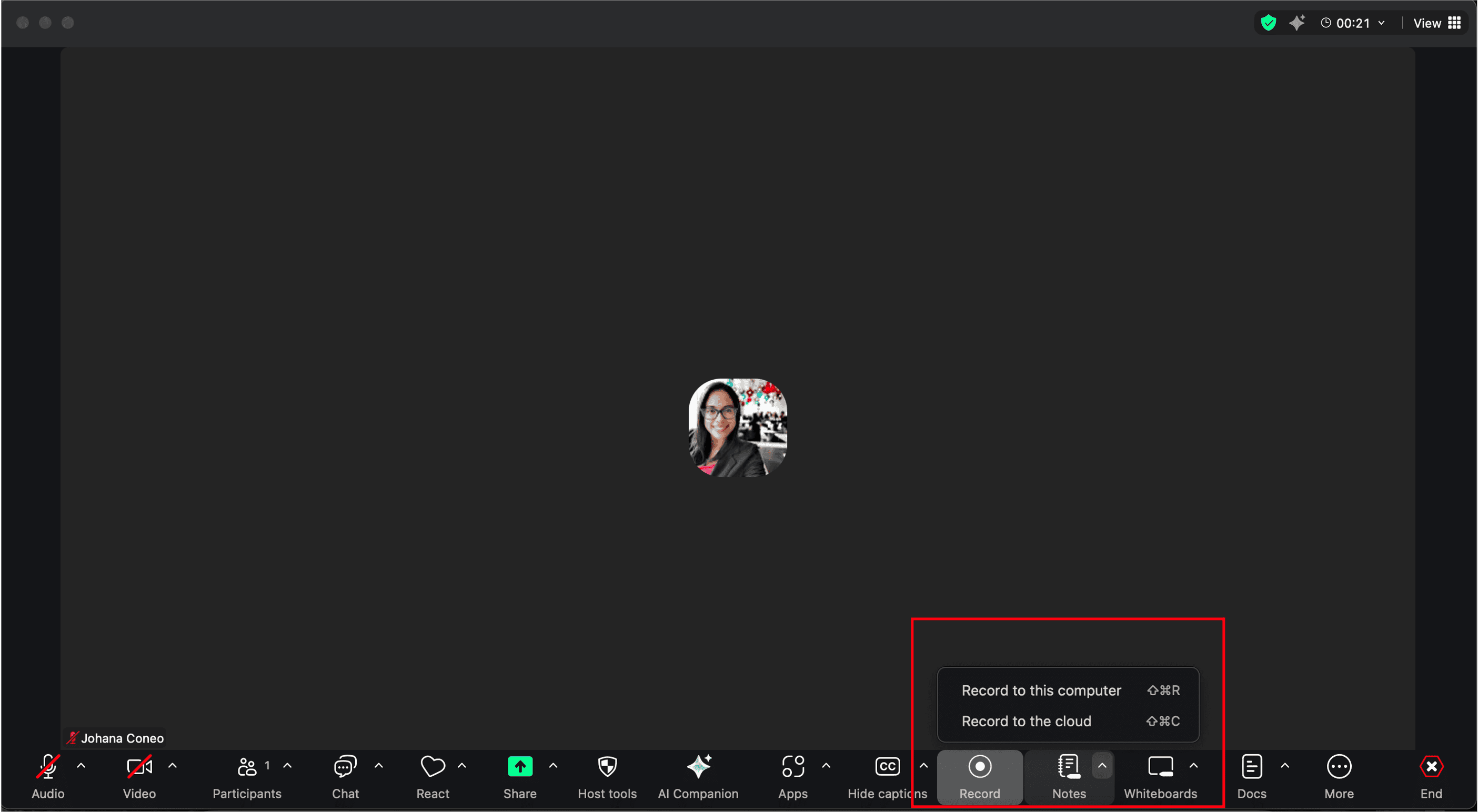
Once the Zoom video call begins, click the Record option on your Zoom interface toolbar and choose cloud recording
8. Stop the Recording and Conclude the Call
Stop the active recording and officially end your Zoom video call framework to trigger the automated background sync.
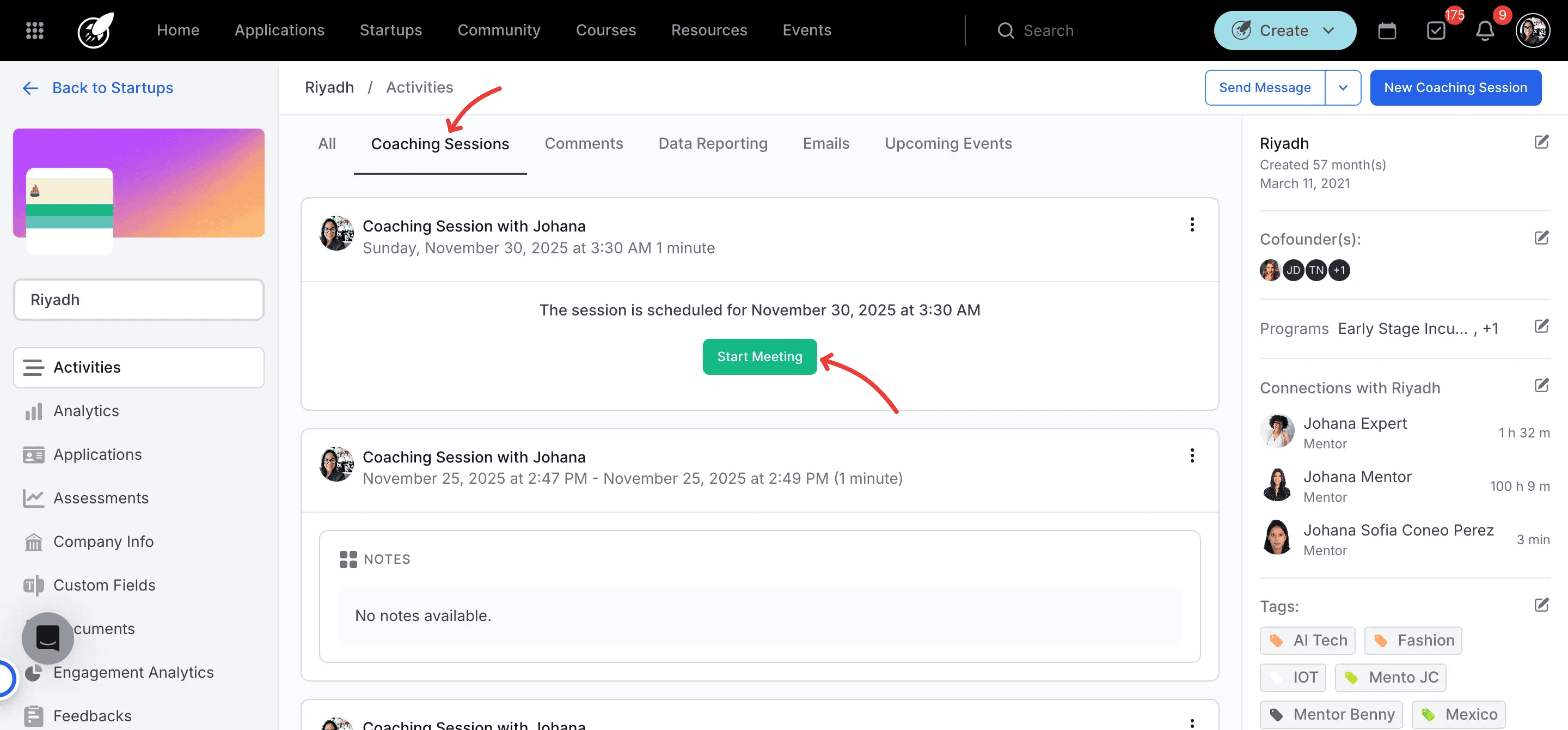
9. Navigate to the Startup File Activity Feed
Go to your target Startup File, look under the Activities menu list, locate the specific coaching session log block and open it.
10. View the Generated Transcript
On the main Coaching Session details layout view, click the See Transcript button link to expand the complete synced text records database.